
App Permissions: What They Mean and When to Say No
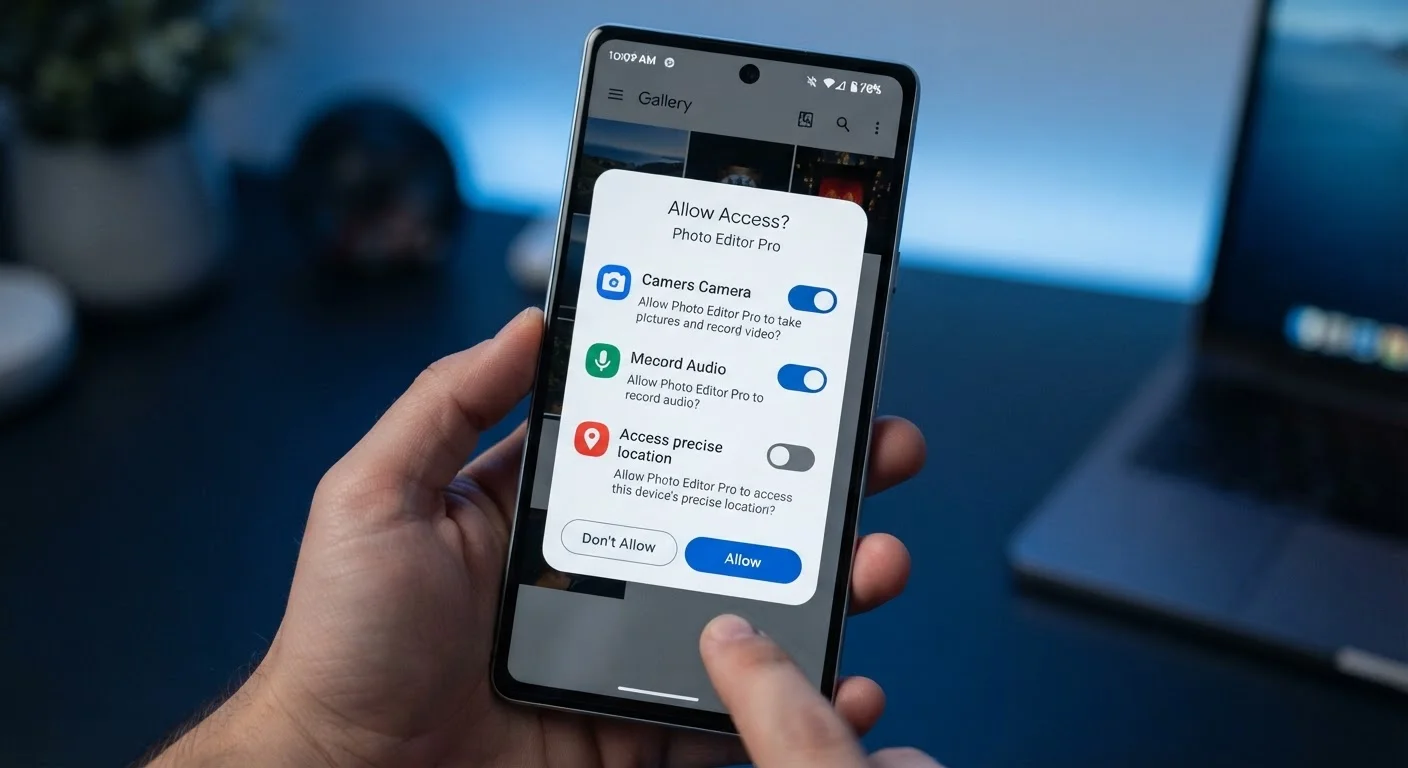
Photo credit: Telecom360.net | Connecting You To The Latest In Telecom
In this article
Apps routinely ask for access to your camera, location, and contacts. Learn what each permission actually enables and how to audit them on your device.
Key Takeaways
- App permissions control which device features and data an app can access.
- Many apps request permissions they don't strictly need to function.
- Both Android and iOS allow you to audit and revoke permissions at any time.
- Denying a permission rarely breaks core app functionality - test it before assuming.
- Permissions granted "always" carry more risk than those set to "only while using."
Why App Permissions Exist
Your smartphone is a dense bundle of sensors and personal data - camera, microphone, GPS, contact list, health records, financial accounts. App permissions are the mechanism that prevents any installed application from accessing all of that by default. Instead, each app must declare which resources it needs, and the operating system asks you to approve each category explicitly.
This system protects users from both malicious apps and overly aggressive data collection by legitimate ones. Without it, any app you install could silently read your messages or track your location indefinitely. Understanding what you're agreeing to is the first step toward a more deliberate digital footprint - a theme explored in depth in our article on the trade-off between convenience and privacy.
45%
Apps requesting unnecessary permissions
Research published by the International Computer Science Institute found that roughly 45% of Android apps sampled requested permissions not required for their stated functionality.
1 in 4
Users who review app permissions
Surveys on mobile privacy behaviour consistently indicate that a minority of smartphone users actively audit which permissions their installed apps hold.
What Common Permissions Actually Enable
Each permission category maps to a specific capability on your device. Here's what granting each one actually unlocks:
- Location: Allows the app to read your device's GPS coordinates. "While using" limits this to active sessions; "Always" enables background tracking.
- Camera: Grants the ability to activate your camera hardware and capture photos or video from within the app.
- Microphone: Enables audio input - essential for calls and voice features, unnecessary for most utility apps.
- Contacts: Provides access to every name, phone number, email, and note stored in your address book.
- Photos / Media: On iOS, you can now share individual images rather than your full library. On Android, access levels vary by OS version.
- Notifications: Allows the app to send you alerts, badges, and sounds - a delivery mechanism, not a data-access risk, though it affects your attention.
- Bluetooth: Used for pairing accessories, but also capable of proximity tracking if abused.
For a full plain-language glossary of every permission type, see our app permissions glossary.
Start With a 'Deny and Test' Approach
When an app requests a permission and you're unsure, deny it and use the app normally. If a specific feature stops working, you'll know exactly which permission is genuinely required - and you can grant it then, rather than pre-emptively handing over access you may never need.
When Saying No Is the Right Call
Not every permission request is illegitimate, but many are unnecessary. A useful mental test: does this permission directly enable something I want this app to do? If the answer isn't obvious, that's a signal to deny - at least initially.
Permissions worth particular scrutiny include contacts (apps can upload your entire address book to their servers), location set to "always" (enables continuous tracking), and microphone in apps with no voice features. Even granting camera access to an app you use infrequently is worth reconsidering, since that access persists until you revoke it.
Before installing any new app, running through a structured checklist can save you from permission creep. Our pre-install permission checklist walks you through each evaluation step.
How to Audit and Revoke Permissions
Both major mobile platforms give you the tools to review and revoke permissions at any time - no uninstall required.
On iOS
- Open Settings and tap Privacy & Security.
- Select any permission category (e.g., Location Services, Microphone) to see every app that has requested it and its current access level.
- Tap any app to change its access level or disable it entirely.
On Android
- Go to Settings > Privacy > Permission Manager for a system-wide view organised by permission type.
- Alternatively, open Settings > Apps, select an app, and tap Permissions to manage that app's access individually.
A practical habit is to review permissions quarterly, especially for apps you use rarely. Unused apps retaining background access - including location pings - are a common but overlooked risk. Our guide on background app activity explains what apps can do even when you're not looking at the screen.
For a structured review before granting any new request, see things worth checking before granting an app permission.
Revoking a Permission Won't Delete Past Data
Removing an app's permission stops future data collection, but it does not delete data the app may have already uploaded to its servers. If data minimisation is a priority, review an app's privacy policy to understand its data retention practices and whether it offers account deletion.
Frequently Asked Questions

Author
Cybersecurity Editorial Team
Cybersecurity Editorial Team is the collective byline for our editorial team and contributor network. Articles published under this byline or an editorial pen name are researched, written, and reviewed according to our editorial standards for clarity, consistency, and independence before publication.
View all articles →