
App Permissions Glossary: What Each Request Actually Means
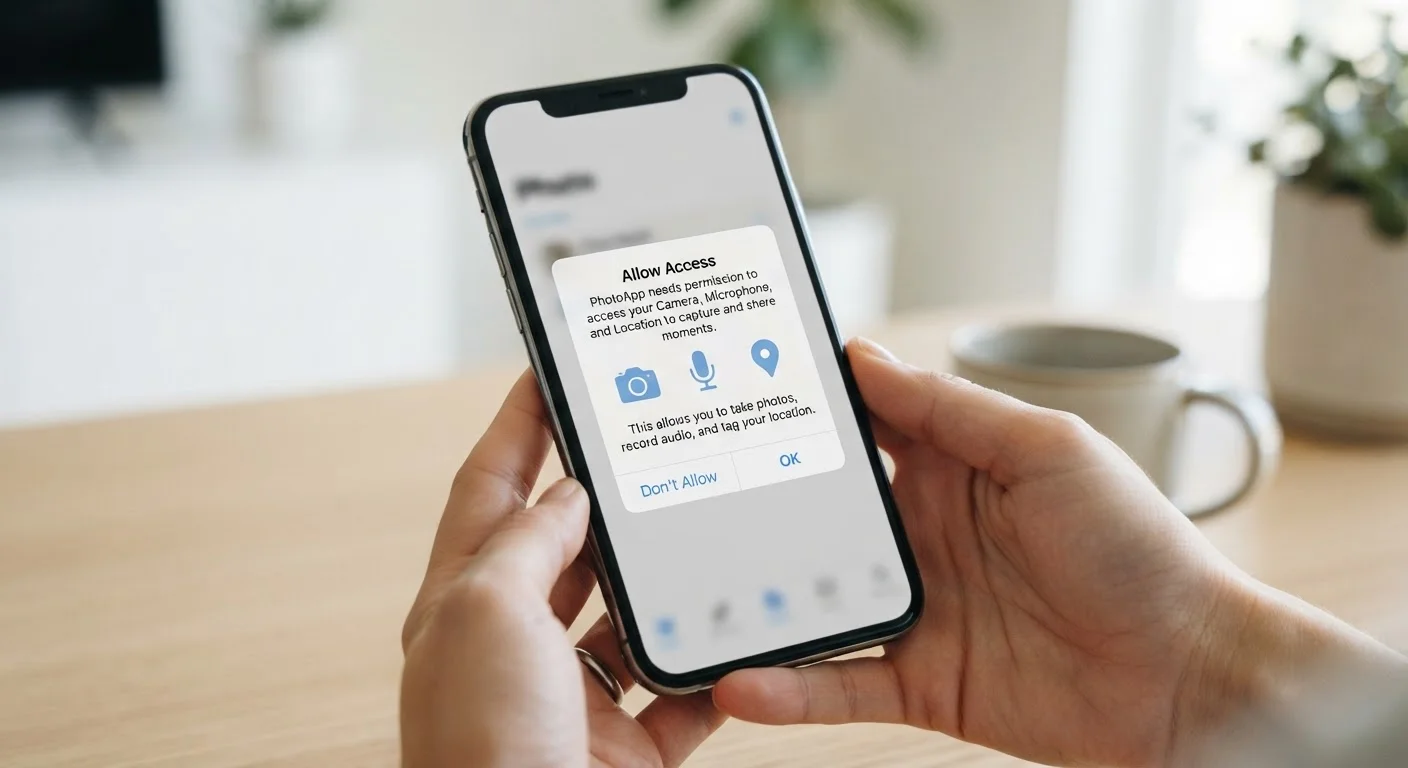
Photo credit: Telecom360.net | Connecting You To The Latest In Telecom
In this article
A quick-reference guide to common app permission requests — camera, location, contacts, and more — in plain language.
Why App Permissions Matter
Every time you install an app and see a dialog asking for access to your camera, contacts, or location, you're being asked to grant that app a specific capability on your device. These prompts aren't just legal formalities - they represent real data pathways that can affect your privacy, battery life, and security.
Both iOS and Android use a permission model to sandbox apps, meaning each app is isolated by default and must explicitly request access to sensitive hardware or data. Understanding the language of these requests helps you grant access confidently when it's warranted - and decline when it isn't. See our full breakdown of how permissions differ by platform for deeper platform context.
| Permission model type | Runtime (requested when feature is used) (iOS 13+ and Android 6.0+ standard) |
| Where to audit permissions | Settings > Privacy (iOS) or Settings > Apps (Android) |
| Can permissions be revoked? | Yes, at any time without uninstalling |
| Location access options | Never / While Using / Always (varies by platform) |
| Biometric data leaves device? | No - secure enclave only returns pass/fail (Apple and Google platform documentation) |
Permission-by-Permission Reference
The following glossary covers the most commonly encountered app permission categories. For each, you'll find what access is actually granted, what legitimate uses look like, and what to consider before approving.
Camera
Grants the app the ability to activate your device's camera hardware and capture photos or video. Legitimate uses include video calling, scanning QR codes, and in-app photography. An app should not require camera access unless it actively needs to capture visual content.
Microphone
Allows the app to record audio through your device's built-in mic. Required for voice calls, speech-to-text input, and audio recording features. Granting this to apps that have no voice or audio function is generally unnecessary.
Location (Precise)
Provides the app with your exact GPS-derived coordinates, typically accurate to within a few meters. Navigation apps, ride-sharing services, and weather apps have clear functional needs. 'Always On' location access means the app can log your position even when you're not using it.
Location (Approximate)
Delivers a coarser location estimate - often within a few city blocks - derived from Wi-Fi and cell tower signals rather than GPS. Sufficient for many use cases like local search and regional weather, with lower privacy exposure than precise location.
Contacts
Gives the app read (and sometimes write) access to the names, phone numbers, email addresses, and other data stored in your address book. Messaging and email apps use this legitimately; many other app types have no clear need for your full contact list.
Storage / Media
Allows the app to read files from or write files to your device's storage, including photos, videos, and documents. On Android, this can be broad (full external storage) or scoped to specific media types. iOS apps are typically limited to specific folders or libraries.
Notifications
Enables the app to send alerts, banners, or badge counts to your device. This doesn't expose personal data but affects your attention and device experience. Both iOS and Android now require apps to explicitly request this permission rather than enabling it automatically.
Bluetooth
Allows the app to discover, connect to, and communicate with nearby Bluetooth devices. Required for apps that pair with wireless peripherals, health trackers, or smart home devices. On modern platforms, Bluetooth permission is also used for proximity detection features.
Calendar
Grants access to read, create, or modify events in your device calendar. Productivity and scheduling apps have legitimate uses, but calendar data can reveal detailed personal and professional patterns.
Health & Fitness Data
On iOS this maps to HealthKit, on Android to Health Connect - both act as centralized health data repositories. Apps granted this permission can read or write health metrics like step counts, heart rate, sleep data, and more. Scope varies; apps should request only the specific data types they need.
Face ID / Biometrics
Allows the app to trigger biometric authentication (face recognition or fingerprint) for identity verification. The underlying biometric data never leaves the device's secure enclave - the app only receives a pass or fail result, not the biometric itself.
Nearby Devices / Wi-Fi
Permits the app to scan for nearby Wi-Fi networks or local network devices. Used legitimately for smart home control and local media streaming. On Android, this permission can also be leveraged to infer location without formal location access, making it worth scrutinizing.
For a broader vocabulary of mobile OS concepts - including terms like sandbox, runtime permissions, and manifest - see our practical glossary of mobile OS and app terms.
Making Smarter Permission Decisions
Permissions aren't binary choices you make once and forget. On both Android and iOS, you can revisit and revoke permissions at any time through your device's Settings menu, typically under Privacy or Apps. Many permissions also offer granular options - for example, location access can often be scoped to "while using the app" rather than always-on.
45%
Android apps requesting location access
A study published in IEEE Security & Privacy found that roughly 45% of Android apps in major categories request location permission, though many do not require it for core functionality.
3 options
Location permission granularity on iOS
Since iOS 13, users can choose Never, While Using the App, or Always - giving meaningful control over persistent location tracking.
A useful mental framework: ask whether the requested permission is necessary for the app's core function, not just a feature that happens to use it. A flashlight app has no functional need for your contact list. A navigation app reasonably needs location but rarely needs your microphone.
Before you install any new app, consider running through a structured review of its permissions and data disclosures. Our pre-install permission checklist walks you through exactly that process. You can also find guidance on auditing existing app permissions in our article on when to say no to app permission requests.
Permissions Can Change After an Update
App updates sometimes introduce new permission requests that weren't present at install. On Android, major new permissions require a fresh user prompt; on iOS, any new sensitive permission triggers a dialog on first use of the related feature. It's worth periodically reviewing permissions for apps you've had a long time, particularly after significant version updates.

Author
Apps & Software Editorial Team
Apps & Software Editorial Team is the collective byline for our editorial team and contributor network. Articles published under this byline or an editorial pen name are researched, written, and reviewed according to our editorial standards for clarity, consistency, and independence before publication.
View all articles →