
Browser Privacy Settings Worth Changing Right Now
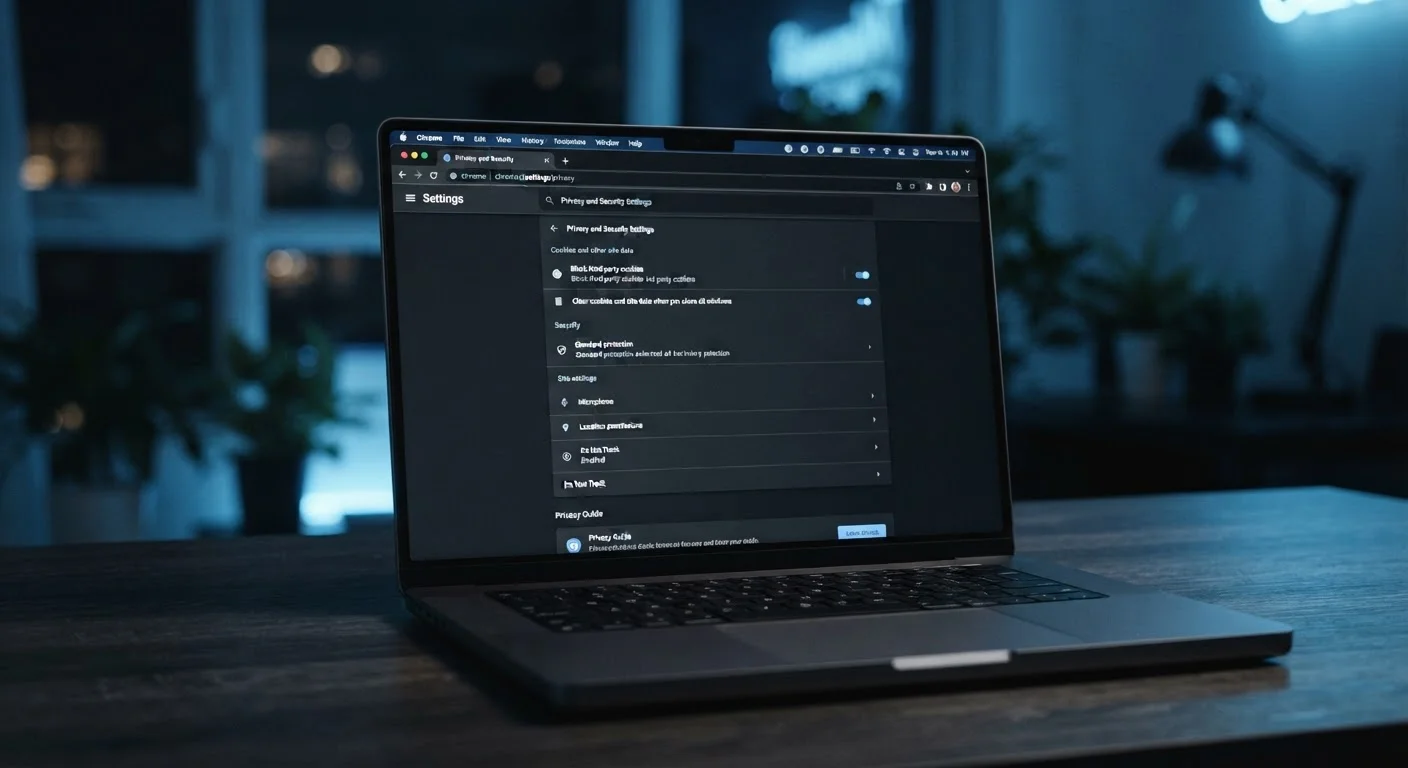
Photo credit: Telecom360.net | Connecting You To The Latest In Telecom
Most browsers ship with privacy settings that favour convenience over protection. This guide walks you through the adjustments that actually make a difference.
Key Takeaways
- Most browsers ship with tracking and data-sharing features enabled by default - you have to opt out manually.
- Disabling third-party cookies and enabling stricter tracking protection are among the highest-impact changes you can make.
- DNS-over-HTTPS encrypts your browsing queries and prevents network-level snooping.
- Clearing saved passwords from your browser and moving to a dedicated password manager is a meaningful security upgrade.
- These settings apply across all major browsers; the exact menu paths differ slightly between them.
Why Default Browser Settings Fall Short
Browsers are designed to work smoothly out of the box, and that priority tends to favour data collection over protection. Advertising ecosystems, browser vendor business models, and convenience features all push defaults toward openness rather than privacy. The result is that most users are browsing with settings that allow third-party tracking, unencrypted DNS queries, and persistent permissions they never explicitly granted.
This is not unique to any one browser. Even privacy-focused browsers can have less-than-ideal defaults in specific areas. The changes covered in this guide are applicable across Chrome, Firefox, Safari, and Edge - the exact menu paths differ, but the underlying controls exist in all of them.
If you are new to thinking about your data online, it is worth understanding that browser settings are just one layer of a broader privacy posture. They are, however, one of the most accessible and highest-impact layers to address first. For a more comprehensive look at how data collection works and what rights you have, see our in-depth guide to online privacy.
What you will need
What to Change and Why It Matters
The steps below cover six settings categories, ordered roughly by impact. Not every setting will be available in every browser version, and some options sit under different menu names depending on your operating system. Where a specific path is given, treat it as a starting point and use your browser's search function within settings if you cannot locate it directly.
Web Browser (any major)
The application whose privacy settings you will be reviewing and adjusting.
Dedicated Password Manager
A standalone app for storing credentials securely, replacing browser-based password saving.
Enable the Strictest Tracking Protection Available
Every major browser now includes some form of tracking protection. In Firefox, navigate to Settings > Privacy & Security and select Strict under Enhanced Tracking Protection. In Chrome, go to Settings > Privacy and security > Cookies and other site data and enable the option to block third-party cookies. In Safari, Intelligent Tracking Prevention is on by default - confirm it is still active under Settings > Privacy. Edge users should visit Settings > Privacy, search, and services and choose Strict tracking prevention.
Block Third-Party Cookies
Third-party cookies are placed by domains other than the site you are visiting and are a primary mechanism used by advertisers to build profiles of your browsing habits. In Chrome and Edge, locate the cookie controls under Privacy and security and set them to block third-party cookies. Firefox's Strict mode handles this automatically. In Safari, third-party cookies are blocked by default. Confirm the setting is active regardless of which browser you use.
Enable DNS-over-HTTPS
DNS-over-HTTPS (DoH) encrypts the DNS queries your browser sends when resolving website addresses, preventing your internet provider or anyone on your local network from seeing which sites you are visiting. In Firefox, go to Settings > Privacy & Security > DNS over HTTPS and switch it on. In Chrome, navigate to Settings > Privacy and security > Security and enable Use secure DNS. Edge offers the same option under Settings > Privacy, search, and services > Security.
Turn Off Browser-Based Password Saving
Browsers offer to save your passwords as a convenience, but this approach carries meaningful risk: if your browser profile is compromised or synced without adequate protection, stored credentials can be exposed. Disable the password-saving prompt in your browser's settings - in Chrome it is under Settings > Autofill > Password Manager, in Firefox under Settings > Privacy & Security > Logins and Passwords. Migrate existing saved passwords to a dedicated password manager instead, which stores credentials in an encrypted vault with stronger access controls.
Disable Location, Camera, and Microphone Access by Default
Browsers can grant websites access to your device's location, camera, and microphone. These permissions should not be granted automatically. In every major browser, navigate to Site Settings or Permissions within the Privacy or Security section and set location, camera, and microphone to Ask before accessing or Block. Review any sites that already have persistent permission and revoke access where it is no longer needed.
Review and Disable Data-Sharing or Sync Telemetry
Most browsers collect usage data and diagnostic telemetry by default to inform product development. While this data is typically anonymised, it still represents an outbound data stream tied to your browser activity. In Firefox, go to Settings > Privacy & Security > Firefox Data Collection and Use and uncheck all options. In Chrome, visit Settings > You and Google > Sync and Google services and review which data points are shared. In Edge, check Settings > Privacy, search, and services for optional diagnostic data settings.
Settings Reset After Browser Updates
Some browsers silently revert privacy settings after major version updates or when you sign into a synced account. After any significant browser update, revisit the settings covered in this guide to confirm they are still active. This is especially common with enhanced tracking protection and cookie controls.
Stricter Settings May Break Some Sites
Blocking all third-party cookies and enabling strict tracking protection can occasionally cause login flows or embedded content on certain sites to malfunction. If a site stops working correctly, you can usually add it as an exception rather than disabling the setting globally.
Check Your Settings Across Every Browser You Use
Many people use more than one browser - a primary browser for daily tasks and a secondary one for specific sites. Privacy settings do not carry across browsers, so run through this checklist on each one you use regularly. Mobile browser settings deserve the same attention as desktop.
Once you have worked through these browser-level changes, it is worth extending the same scrutiny to other parts of your digital life. Social media privacy controls are frequently overlooked and warrant their own audit. You may also find it useful to understand the trade-off between convenience and privacy in the apps you use daily. For readers who want to go further with anonymous browsing, our comparison of VPNs and Tor explains the practical differences between those tools.

Author
Cybersecurity Editorial Team
Cybersecurity Editorial Team is the collective byline for our editorial team and contributor network. Articles published under this byline or an editorial pen name are researched, written, and reviewed according to our editorial standards for clarity, consistency, and independence before publication.
View all articles →