
Keyboard Shortcuts, Templates, and Automations: Low-Effort Ways to Reclaim Hours
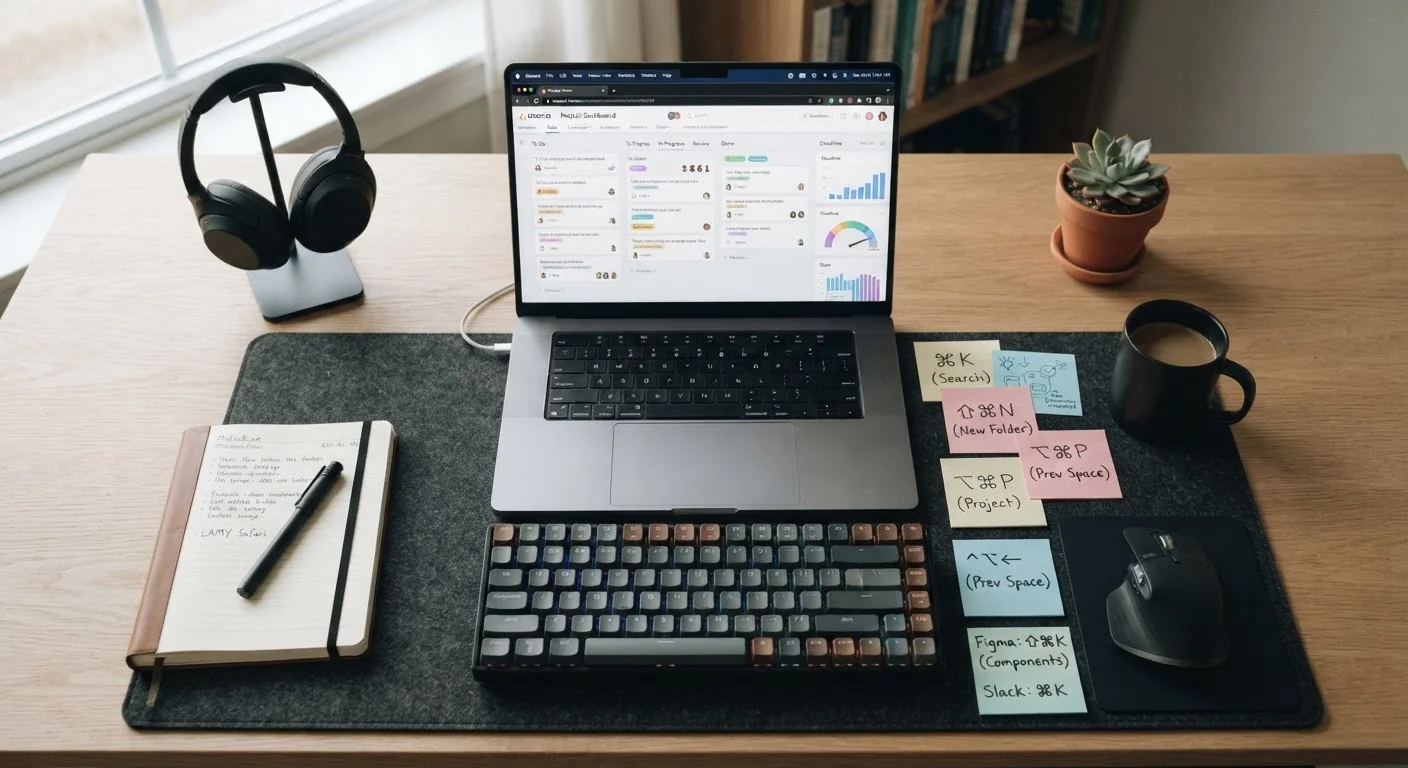
Photo credit: Telecom360.net | Connecting You To The Latest In Telecom
In this article
A curated look at underused features already inside your productivity tools that can meaningfully reduce repetitive work.
Key Takeaways
- Keyboard shortcuts, templates, and automations are built into most productivity tools but remain widely underused by professionals.
- Even modest time savings compound significantly when applied to tasks repeated dozens of times per week.
- The highest-ROI automations target handoffs between apps - not just individual tasks within a single tool.
- Text expansion and email templates eliminate retyping without requiring any advanced technical setup.
- Workflow automations between tools can be configured in minutes using no-code platforms already available to most teams.
The Hidden Productivity Layer You're Probably Ignoring
Most professionals have strong opinions about which productivity apps they prefer - and spend considerably less time learning what those apps actually do. The result is a familiar pattern: paying for enterprise software while using roughly 20% of its capability. Keyboard shortcuts, document templates, and cross-app automations represent a layer of functionality that requires no additional subscription, no new tool, and often no IT involvement to activate.
This isn't about optimizing for its own sake. If you answer similar emails fifteen times a week, reconstruct the same report structure every Friday, or manually copy data between two platforms that could share it automatically, those minutes accumulate into hours. The five strategies below target exactly those friction points - ranked roughly by implementation effort, from immediate wins to slightly more deliberate setups. For broader context on where automations fit within a digital workflow, the Productivity Apps hub covers the tool categories most relevant to office environments.
Start with one application, not all of them
Attempting to learn shortcuts and configure templates across every tool simultaneously tends to produce partial adoption of everything and mastery of nothing. Identify the single application where you spend the most time each day and spend one focused week extracting maximum efficiency from it before moving to the next. Depth before breadth pays off faster.
Five Underused Features That Compound Over Time
Master application-native keyboard shortcuts first
Before exploring any third-party tool, invest time in the shortcut documentation for the applications you use most - email clients, document editors, project management platforms. Most professionals use fewer than a dozen shortcuts habitually, while the applications they work in daily offer hundreds. Formatting, navigation, search, and send actions are typically shortcuttable with a single keypress combination.
A useful exercise: identify the five mouse-click sequences you perform most frequently in any given app, then look up whether each has a keyboard equivalent. For many users, actions like searching within a document, jumping between tabs, or applying heading styles are available as shortcuts but were never discovered.
Five targeted shortcut discoveries can eliminate hundreds of mouse clicks per week.
Set up text expansion for your most-repeated phrases
Text expansion tools allow you to type a short abbreviation - such as ;sig or ;addr - and have it instantly replaced with a full block of text: a signature, a disclaimer, a meeting request template, or a frequently used paragraph. Most operating systems include a basic version of this natively (system-wide on macOS under Keyboard settings; on Windows via some apps and third-party utilities), and dedicated text expansion utilities offer more control.
The highest-value candidates for text expansion are phrases you type verbatim repeatedly: email sign-offs, support response openers, standard disclaimers, project status language, or recurring instructions you send to vendors. A well-configured text expansion library can save 20-30 minutes per day for heavy email users without requiring any change to existing workflows.
Text expansion turns a three-character abbreviation into a complete, consistent paragraph instantly.
Build reusable document and email templates
Most document platforms - word processors, email clients, project management tools - support saved templates that can be opened as a pre-structured starting point rather than a blank page. The value compounds when multiple team members use the same template, because it standardizes structure and reduces the back-and-forth caused by inconsistent formatting.
High-priority candidates for templating include: weekly status reports, client-facing proposals, meeting agendas, onboarding checklists, and internal approval requests. Templates don't need to be elaborate - even a pre-set heading structure with placeholder prompts reduces cognitive load and ensures nothing is accidentally omitted. For professionals exploring AI-assisted drafting as a complement to templates, AI writing assistants offers a balanced evaluation of where that approach genuinely helps.
A shared team template eliminates structural inconsistency and reduces revision cycles.
Automate repetitive handoffs between applications
A significant share of workplace repetitive work happens not within a single app, but between apps: copying a form submission into a spreadsheet, moving a completed task card to a Slack channel notification, or logging a calendar event when a project status changes. No-code automation platforms - several of which are included in common business software subscriptions - allow these handoffs to be triggered automatically based on conditions you define.
Setting up a basic cross-app automation typically takes 10-20 minutes and requires no programming knowledge. The key is to identify triggers (an event that happens) and actions (what should happen next) that you currently perform manually. Once configured, the automation runs without further input. For readers interested in how similar trigger-based thinking applies outside the office, designing effective home automation routines covers the same structured approach in a consumer context.
Cross-app automations eliminate the manual copy-paste handoffs that fragment focused work time.
Schedule and batch recurring administrative tasks
Not every efficiency gain requires a new feature. Batching is one of the most underrated strategies: grouping similar low-cognition tasks - filing, labeling, responding to non-urgent messages, updating trackers - into a single scheduled time block rather than handling them reactively throughout the day. Many email and calendar platforms support rules or filters that pre-sort incoming items, so the actual batching session requires only decisions, not triage.
Pairing batching with calendar blocking (reserving dedicated time for deep work and treating it as non-negotiable) creates a structural defense against reactive task-switching, which research consistently identifies as a significant drain on focused productivity. For professionals newer to structured digital workflows, what new productivity software users often overlook provides foundational context for building these habits effectively.
Batching similar tasks into one scheduled block dramatically reduces the cognitive cost of context-switching.
Automation doesn't require engineering skills
Many professionals assume that workflow automations require developer access or IT approval. In practice, most business productivity suites - including common email, project management, and document platforms - include no-code automation builders accessible to any user. Check your existing tool's settings or help documentation before assuming you need a separate product or technical resource.
Making the Habit Stick
The most common reason professionals don't use these features isn't ignorance - it's inertia. Learning a shortcut takes ten seconds; remembering to use it until it becomes automatic takes a few days of deliberate practice. Printing a one-page cheat sheet of your ten most-used shortcuts and keeping it visible for two weeks is a proven approach that costs nothing.
Template and automation adoption follows a similar curve. The first time you configure a document template or set up a cross-app trigger, it takes longer than doing the task manually. The second time, it doesn't. It's also worth calibrating expectations: these tools reduce friction on repetitive work - they don't resolve strategic bottlenecks or substitute for focus time. For a grounded take on where digital tools genuinely help versus where they're oversold, common productivity app myths is worth reading alongside this guide.

Author
Business Tech Editorial Team
Business Tech Editorial Team is the collective byline for our editorial team and contributor network. Articles published under this byline or an editorial pen name are researched, written, and reviewed according to our editorial standards for clarity, consistency, and independence before publication.
View all articles →