
Switching from Android to iOS - What Carries Over and What Doesn't
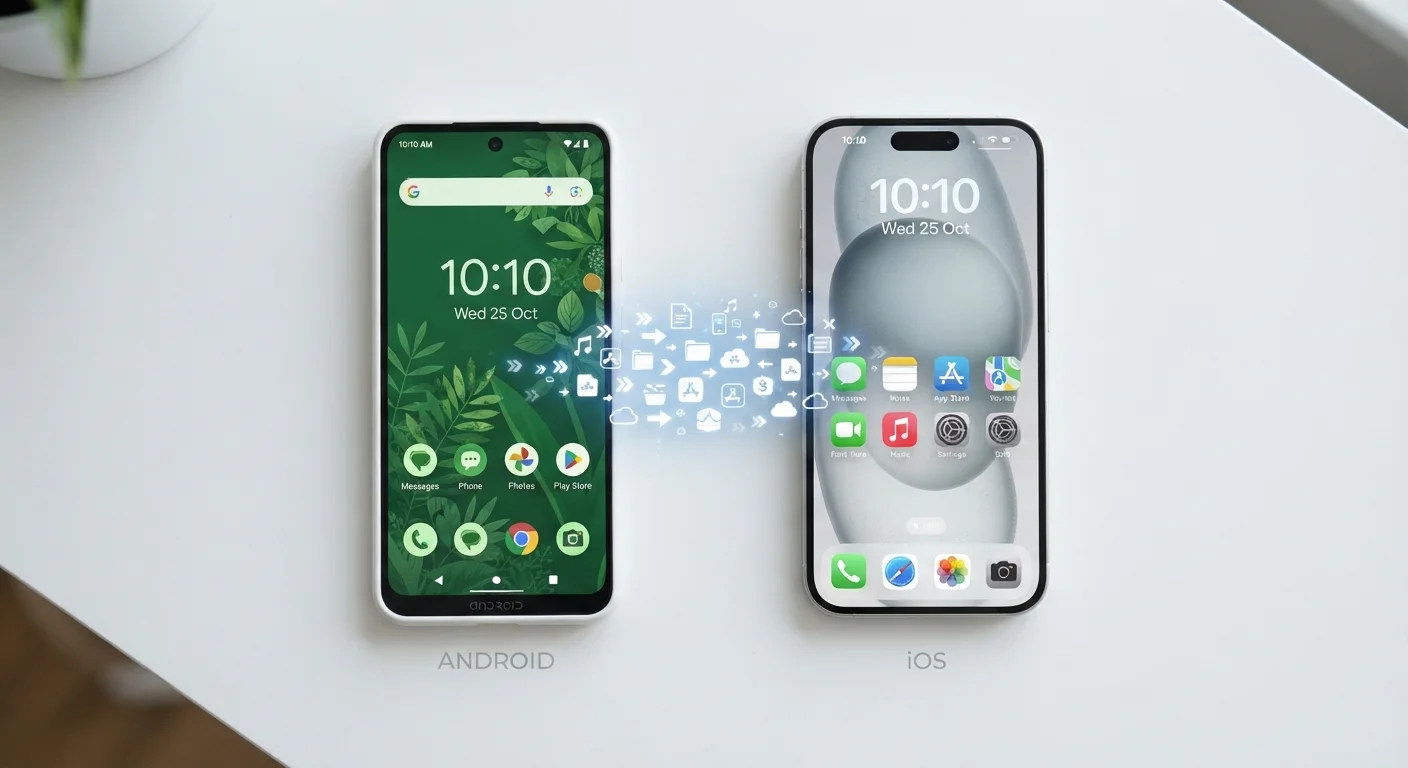
Photo credit: Telecom360.net | Connecting You To The Latest In Telecom
In this article
Contacts, photos, apps, and settings: an honest look at what migrates smoothly when changing platforms and where gaps remain.
Key Takeaways
- Contacts, photos, and videos migrate reliably using Apple's Move to iOS app or manual export.
- Paid Android apps do not transfer; you must repurchase iOS equivalents separately.
- iMessage replaces SMS automatically - notify contacts to avoid missed messages.
- Google account data syncs to iOS, but Google ecosystem apps lose some deep integration.
- App-specific data such as game progress and in-app purchases rarely carries over between platforms.
What Migrates Reliably - and What Doesn't
Platform migrations are never perfectly symmetrical. Apple's Move to iOS handles the core data layers well: contacts, photos, videos, message history, web bookmarks, mail accounts, and free apps with matching App Store equivalents all transfer in a single session. Calendar events and notes synced through Google carry over cleanly if you add your Google account to iOS afterward.
Where gaps appear is predictable. Paid apps represent the most common friction point - your purchase history lives in the Google Play ecosystem and carries no credit toward iOS equivalents. In-app purchases and game progress are similarly stranded unless the specific app uses cross-platform cloud saves (many do not). App-specific local data - downloaded podcast episodes, offline maps, custom keyboard dictionaries - is lost entirely.
SMS message history transfers via Move to iOS, but the format is read-only; you cannot reply from those migrated threads. WhatsApp, Signal, and other encrypted messengers do not migrate chat history through Move to iOS - each has its own export or transfer mechanism that must be handled separately. For a broader look at how the two platforms differ at the OS level, see how Android and iOS handle memory, security, and hardware access differently.
Let Google Sync Do the Heavy Lifting
Gmail, Google Calendar, and Google Contacts all sync natively to iOS through the Mail, Contacts, and Calendars settings panel - no export files needed. Add your Google account under Settings > Mail > Accounts and toggle the data types you want to access. This approach keeps data current rather than capturing a static snapshot.
What to Expect From Your Tools and Workflow
The shift in default ecosystem services is where day-to-day friction concentrates. On Android, Google Assistant, Chrome, and Google Maps integrate deeply at the OS level. On iOS, those apps exist but operate as third-party applications - they cannot set themselves as the default browser or assistant in all contexts the way they could on Android, though iOS has progressively expanded third-party browser defaults since iOS 14.
Deregister iMessage Before Leaving Android
If you previously owned an iPhone and are returning from Android, your phone number may still be associated with iMessage. Messages sent from iPhone users could route through iMessage and never reach your Android device. Use Apple's online deregistration tool before switching back, or contact Apple Support if messages are silently disappearing.
Google Photos remains fully functional on iOS and is a reliable way to preserve your photo library continuity. iCloud Photos and Google Photos can run simultaneously, though duplicating sync to two services consumes additional storage on both. If you plan to consolidate to iCloud only, consider migrating your files cleanly to a new cloud service rather than maintaining parallel libraries.
Hardware-adjacent data - such as fitness records from Google Fit or a Wear OS smartwatch - does not carry over to Apple Health automatically. Manual export of health data in a compatible format is possible but involves multiple steps. If you're also evaluating carrier compatibility before switching devices, auditing your carrier setup before the switch can prevent a separate category of disruption. Understanding the deeper philosophical differences between these ecosystems also helps set realistic expectations - how Android and iOS differ in philosophy and ecosystem design covers why some of these gaps exist by design rather than oversight.
Back up your Android device to Google Drive
Open the Settings app on your Android device and navigate to System > Backup. Confirm that Google Drive backup is enabled and tap Back up now. Wait for the backup to complete - this captures contacts, call history, device settings, and app data for supported applications. Separately, open Google Photos and verify that camera sync is complete so no images are left on-device only.
Install Move to iOS on your Android device
Search for Move to iOS in the Google Play Store and install it. This app, published by Apple, creates a temporary private Wi-Fi network between the two devices to transfer data without requiring internet access. Do not open it yet - you'll launch it when prompted during iPhone setup.
Begin iPhone setup and select 'Move Data from Android'
Power on your new iPhone and proceed through the initial setup screens. When you reach the Apps & Data screen, select Move Data from Android. Your iPhone will display a ten-digit or six-digit code. Open the Move to iOS app on your Android device, tap Continue, and enter this code when prompted. The two devices will connect directly.
Select which data types to transfer
Move to iOS will display a checklist of transferable content: contacts, message history, camera photos and videos, web bookmarks, mail accounts, calendars, and free apps with iOS equivalents. Select everything you want to migrate. Note that paid apps are excluded - Move to iOS only transfers free App Store apps that exist on both platforms. Tap Continue and wait for the progress bar to complete on both devices before touching either phone.
Add your Google account to iOS for ongoing sync
On your iPhone, go to Settings > Mail > Accounts > Add Account > Google. Sign in with your Google credentials and enable whichever data types you want synced - Mail, Contacts, Calendars, and Notes. This keeps your Google Workspace data live and updated on iOS rather than relying solely on the static snapshot from Move to iOS.
Audit your app list and repurchase paid apps
Open the App Store and search for each application you used on Android. Most mainstream apps - social media, productivity, streaming, banking - have iOS counterparts, though the experience may differ. See why the same app can behave differently across platforms for context on what to expect. Paid Android apps do not transfer; you will need to purchase iOS versions separately if no free alternative exists.
Deregister from iMessage if previously an iPhone user
If you have ever owned an iPhone before, your phone number may still be enrolled in iMessage. Visit Apple's official support page and use the iMessage deregistration tool to remove your number. This ensures iPhone contacts can reach you via standard SMS rather than iMessage, preventing messages from disappearing in transit. After deregistering, notify frequent contacts that you are on Android temporarily or have switched.
Before You Start: Requirements and Tools
A smooth migration depends on preparation more than execution. Confirm that your Android device has completed a full backup to Google Drive and that Google Photos sync is current - once you begin the Move to iOS process, your attention will be on the iPhone. Gather the items listed below before starting.
What you will need
Move to iOS (Android app)
Apple's official transfer tool - moves contacts, message history, photos, videos, web bookmarks, and mail accounts wirelessly from Android to iPhone.
Google Drive
Used to back up Android app data, SMS history, and call logs before the switch, and to access Google-synced data on iOS afterward.
Google Photos
Cross-platform photo library that preserves your full camera roll on iOS without relying on the Move to iOS transfer.
Apple ID account
Required to activate iCloud, download apps from the App Store, and access Apple ecosystem services on your new iPhone.
Back Up Everything Before You Begin
Platform migrations are one-directional in practice - restoring to your old Android device afterward is possible but disruptive. Create a full backup to Google Drive or local storage before initiating any transfer. Verify the backup completed successfully by checking the backup date in your Android settings.

Author
Smartphones Editorial Team
Smartphones Editorial Team is the collective byline for our editorial team and contributor network. Articles published under this byline or an editorial pen name are researched, written, and reviewed according to our editorial standards for clarity, consistency, and independence before publication.
View all articles →