
Productivity Apps for Different Work Styles: A Comprehensive Overview
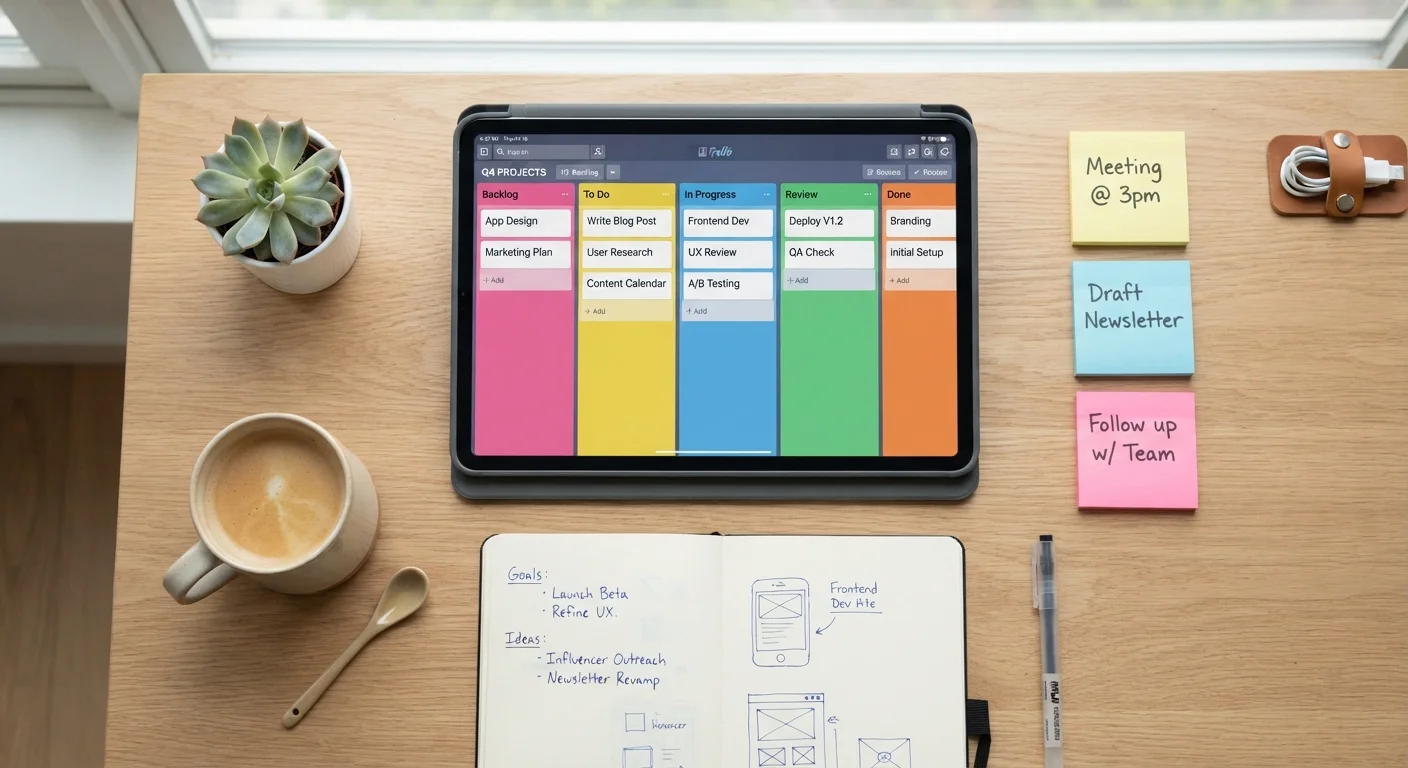
Photo credit: Telecom360.net | Connecting You To The Latest In Telecom
In this article
From deep-focus solo work to high-volume team coordination, an end-to-end guide mapping app categories to the workflows and work styles they genuinely support.
Key Takeaways
- No single app category works equally well for every work style or role.
- Task managers, focus tools, note-taking apps, and project platforms serve fundamentally different cognitive needs.
- Mismatched app choice - not lack of discipline - is the leading cause of abandoned productivity tools.
- Understanding the workflow methodology behind an app helps predict whether it will fit your habits.
- Smaller, well-chosen stacks consistently outperform large, overlapping toolsets.
Why Work Style Determines App Fit
Productivity apps fail people more often than people fail productivity apps. The root cause is almost always a mismatch: a deeply collaborative person using a solo-optimized tool, or a deep-focus writer forced into a high-notification team platform. Understanding your work style - how you process tasks, manage attention, and coordinate with others - is the prerequisite for any useful app decision.
Work styles roughly cluster around a few dimensions: solo vs. collaborative, linear vs. parallel (do you complete one thing at a time, or juggle multiple streams?), and reactive vs. structured (do you plan ahead, or respond to incoming demand?). These dimensions determine which app category you actually need, before any question of which specific app to use.
For a grounding in the core methodologies - GTD, time-blocking, kanban, inbox-zero - that underpin how these categories are engineered, see Workflow Patterns That Productivity Apps Are Actually Built Around. That context makes the category guide below substantially more actionable.
Before evaluating any app, spend one week logging where your work actually breaks down - in capture, prioritization, execution, or handoff. The category that addresses your specific failure point matters far more than any individual feature.
Practitioners consistently find that users gravitate toward apps with impressive features rather than apps that solve their actual friction point, leading to high abandonment rates after initial enthusiasm.
If you find yourself maintaining a separate list of things your productivity app can't track, that's a signal you're in the wrong category - not that you need a workaround.
Workarounds accumulate silently and eventually consume more cognitive overhead than the problem they were solving, undermining the tool's core value.
App Categories and the Workflows They Support
Each major app category encodes assumptions about how work happens. Knowing those assumptions prevents choosing a tool that fights your natural patterns.
Task Managers
Designed around discrete, completable units of work. They work best for linear thinkers who gain satisfaction from checking things off, and for anyone managing a high volume of independent to-dos. Most task managers implement either GTD-style capture-and-triage or simple priority-ordered lists. They struggle with work that is inherently continuous or deeply interdependent.
Project and Kanban Boards
Built for work that moves through stages - ideation, in progress, review, done. Kanban boards make workflow state visible, which is invaluable for parallel workers managing multiple streams simultaneously. They also serve small teams tracking handoffs. The visual overhead can feel excessive for simple personal task lists.
Note-Taking and Knowledge Bases
These apps prioritize capture and retrieval over action. They suit researchers, writers, and knowledge workers who need to accumulate context over time. The full breakdown of productivity app categories covers how note-taking tools differ structurally from task managers - an important distinction many users overlook.
Focus and Time-Management Tools
Pomodoro timers, time-blockers, and distraction-blocking apps address the when and how long of work, not the what. They are most effective layered on top of a task or project system, not used as standalone productivity solutions.
Communication and Coordination Platforms
Designed for team-level work, these tools manage asynchronous and synchronous communication, file sharing, and status visibility. They introduce notification load that can disrupt individual deep work if not actively managed.
68%
Workers who use 4+ apps daily for work tasks
According to a Salesforce State of the Connected Customer report, most knowledge workers routinely switch between multiple tools throughout the workday.
23 min
Average time to refocus after a task interruption
Research from the University of California, Irvine found it takes approximately 23 minutes to return to deep focus after an interruption - making notification-heavy tools a direct productivity risk.
31%
Productivity loss attributed to tool-switching overhead
Industry analyses of knowledge worker behavior suggest roughly a third of lost productive time stems from context-switching between applications rather than the work itself.
Matching App Categories to Work Styles
The following framework maps common work style profiles to the app categories most likely to complement them - not prescribe them.
| Work Style | Primary Need | Best-Fit Category | Watch Out For |
|---|---|---|---|
| Deep-focus solo worker | Uninterrupted execution time | Focus tools + simple task manager | Over-complex project boards |
| High-volume task processor | Rapid capture and triage | GTD-style task manager | Tools without inbox or quick-capture |
| Creative or knowledge worker | Non-linear idea development | Note-taking / knowledge base | Rigid linear task lists |
| Team coordinator or manager | Visibility across multiple contributors | Project board + communication platform | Solo-optimized apps with no sharing |
| Reactive responder | Managing incoming demand in real time | Communication platform + shared task manager | Rigid time-blocking tools |
Hybrid work styles - common in practice - often benefit from pairing two categories rather than forcing a single app to do everything. Whether a consolidated platform or a best-of-breed combination makes more sense depends on your team structure; the trade-offs are explored in All-in-One Productivity Platforms vs. Best-of-Breed Apps.
Common Pitfalls When Choosing Productivity Apps
The most consistent mistake is selecting an app based on feature lists rather than workflow fit. A robust kanban tool with dependency tracking is wasted on someone whose entire workload is a personal to-do list. Conversely, a minimalist checklist app will frustrate a project manager who needs status visibility across a team.
Feature Richness Does Not Equal Workflow Fit
An app with comprehensive features designed for team project management will actively hinder a solo deep-focus worker, even if its feature list looks impressive. Evaluate tools against your specific workflow pattern, not against a generic list of capabilities. More features mean more interface complexity, more decisions per session, and a steeper learning curve - all of which carry real cognitive costs.
A second pitfall is tool accumulation. Each app added to a stack creates overhead: another login, another notification source, another place to check. Research into knowledge worker behavior consistently shows that context-switching between tools erodes the focus gains those tools were meant to create. See Productivity Tool Sprawl: Why More Apps Often Means Less Output for a detailed treatment of this dynamic.
A third pitfall is confusing app adoption with behavior change. Apps provide structure, but they do not supply motivation or discipline. Productivity App Myths That Keep People Stuck examines this gap between what tools promise and what they can realistically deliver.
Building a Sustainable App Stack
A sustainable stack has three properties: it covers your actual workflow gaps (not imagined ones), it has clear boundaries between tools so nothing overlaps, and it has a low enough entry cost that you'll use it consistently under pressure.
Before committing to any app, run it against a structured evaluation: Does it integrate with tools you already use? Can you export your data if you leave? Does it work offline when needed? What is the realistic learning curve? Evaluating a Productivity App Before You Commit to It provides a complete checklist for exactly this process.
For teams, the stack question extends to shared conventions - which tool owns which type of work, and how does information move between them. Productivity Software for Teams: A Complete Field Guide addresses how modern teams structure these decisions at scale.
Finally, if terminology across platforms is creating friction - terms like OKRs, webhooks, or sprints appearing in onboarding without explanation - the Productivity Tools Glossary is a practical reference for getting oriented quickly.
Start with One Category, Add Deliberately
Anchor your stack around the single category that addresses your most frequent workflow breakdown - whether that's task capture, project visibility, or focused execution. Add a second tool only when a genuine gap persists after two to three weeks of consistent use. This approach prevents the accumulation of overlapping tools that collectively create more friction than they resolve.

Author
Apps & Software Editorial Team
Apps & Software Editorial Team is the collective byline for our editorial team and contributor network. Articles published under this byline or an editorial pen name are researched, written, and reviewed according to our editorial standards for clarity, consistency, and independence before publication.
View all articles →