
Syncing Your Work Across Devices Without Losing Your Mind
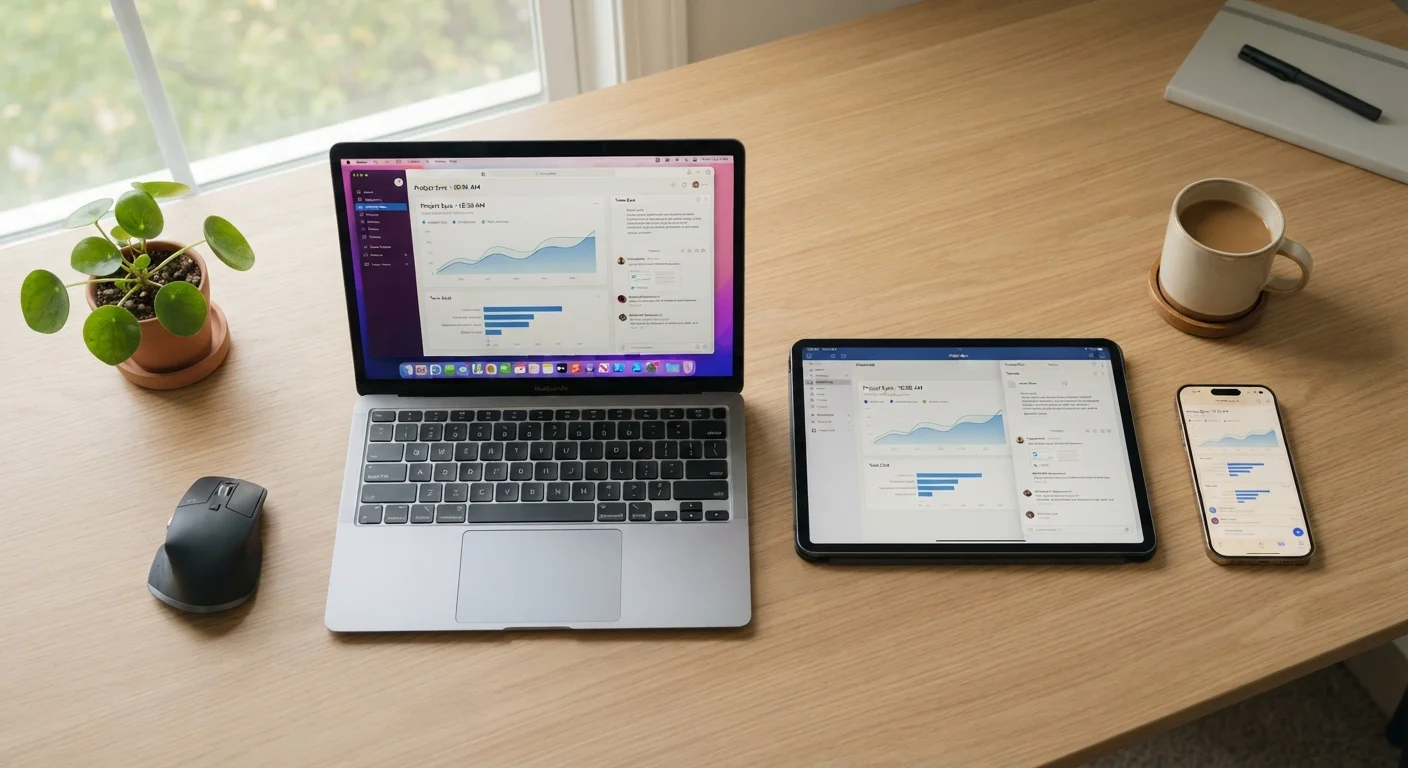
Photo credit: Telecom360.net | Connecting You To The Latest In Telecom
In this article
Learn how to set up productivity apps so your notes, tasks, and calendars stay consistent whether you're on a phone, tablet, or desktop.
Key Takeaways
- Sync reliability depends on app architecture - cloud-native apps sync more consistently than add-on sync layers.
- Grouping apps by category before setup prevents data scattered across incompatible tools.
- Conflict resolution and offline behavior vary significantly between apps - configure both intentionally.
- A single trusted account per app eliminates the most common source of duplicate or missing data.
- Notification settings on each device should be audited separately after sync is established.
Why Sync Breaks Down (and What You Can Do About It)
Cross-device sync fails for a handful of predictable reasons: mismatched accounts, background refresh restrictions, poor offline conflict handling, and architecturally weak sync implementations. Understanding which failure mode you're dealing with is more useful than blindly toggling settings. Most users experience sync as an all-or-nothing mystery, but it's actually a pipeline with discrete checkpoints - each one configurable.
The category of app matters too. Cloud-native tools - where every change is written to a remote server first and pulled to devices on demand - behave very differently from apps that sync local databases on a schedule. The former is more reliable under normal conditions; the latter can drift when two devices are offline simultaneously. If you're choosing between options, the trade-offs between all-in-one platforms and specialized apps are worth understanding before you commit.
Cloud-Native vs. Sync-Added Architecture
Apps built cloud-first (where the server is the source of truth) sync more reliably than apps that added cloud sync as a later feature. If you're choosing between options, check whether offline edits merge gracefully or simply overwrite. This architectural difference is often the deciding factor in long-term sync reliability. See the pre-commitment checklist for what to verify before building a workflow around any app.
Security is also worth considering once your sync is running. Productivity apps that sync across devices are often holding sensitive schedules, private notes, and project details. Review the guide to keeping sensitive work data safe once your setup is stable.
What You'll Need Before You Start
Getting sync right requires a small amount of preparation. Gather your accounts and devices, and clarify what categories of work you're coordinating before touching any settings.
What you will need
Cloud-based note-taking app
Captures and syncs written notes, research, and reference material across all your devices.
Task manager with cloud sync
Tracks to-dos and projects so action items are visible and up to date on every device.
Shared calendar app
Keeps appointments and scheduled blocks consistent whether you're checking your phone or desktop.
Cloud file storage service
Provides a single location for documents and attachments that any linked app can reference.
If your notes workflow is more complex - linked documents, audio capture, or structured knowledge management - you may also want to review the personal knowledge management setup guide alongside this one.
Setting Up Sync Step by Step
One Category, One App - Non-Negotiable
Splitting task tracking between two apps, or mixing calendar events into your notes app, creates a sync surface that's impossible to reconcile cleanly. Decide upfront which app owns each category and enforce that boundary consistently. This is the structural decision that determines whether your sync setup stays manageable or gradually falls apart.
Map your workflow categories before opening any app
Before touching any settings, write down the three core categories of work information you generate daily: notes (ideas, meeting records, research), tasks (action items with deadlines), and calendar events (appointments, blocks, reminders). If you conflate these in a single tool without intention, sync problems become structural, not just technical. See the productivity apps overview for a map of how different app categories serve different work styles.
Sign in with one consistent account per app on every device
The single most common cause of sync failures is using different accounts on different devices - a personal email on your phone and a work email on your laptop for the same app. Open each productivity app on each device and verify that the same account is active everywhere. Log out and back in if needed. This step alone resolves a majority of missing-data complaints.
Enable background app refresh and sync permissions
On iOS, go to Settings → General → Background App Refresh and enable it for each productivity app. On Android, navigate to Settings → Apps → [App Name] → Battery and set the optimization mode to Unrestricted or equivalent. Without background refresh, apps only pull new data when you open them, creating gaps that look like sync failures but are actually permission gaps.
Configure offline access and conflict resolution settings
Most cloud-native apps let you designate content for offline availability - enable this for any notes or tasks you need during travel or poor-connectivity situations. More importantly, find the app's conflict resolution setting (often labeled sync conflicts or merge behavior). Set it to create a conflict copy rather than silently overwriting, so you can manually reconcile edits made on two devices while offline. See how offline modes work for a deeper breakdown of what to expect across app types.
Test sync end-to-end with a throwaway entry
Create a test note or task on your phone, then switch to your tablet or desktop and wait up to 60 seconds. If the entry appears, your sync path is working. If it doesn't, check: (1) both devices are on the same account, (2) background refresh is active, and (3) the app is not in low-power or restricted mode. Delete the test entry on one device and confirm deletion propagates to the others - this tests the delete sync path, which fails more often than the create path.
Audit notification settings per device after sync is confirmed
Sync and notifications are independent systems. Once your data is flowing correctly, visit each device's notification settings for your productivity apps and configure channels, alert styles, and Do Not Disturb exceptions to match how you actually work. Receiving the same task reminder on three devices simultaneously creates noise, not productivity. Designate one primary device for action-oriented alerts and reduce others to badge-only or silent. The notification configuration guide covers priority channels and focus modes in detail.
Don't Rely on Sync for Data Backup
Cross-device sync is not a backup system. If you accidentally delete a note or task and it syncs the deletion to all devices, your data is gone unless the app offers a version history or trash recovery feature. Verify your app's recovery window before relying on it for critical work, and consider periodic exports for anything irreplaceable.
Keeping Your Sync Setup Healthy Over Time
A sync setup that works today can silently degrade after an OS update, an app update that resets permissions, or a password change that logs you out of one device. Build a lightweight monthly habit: open each app on each device and confirm that a recent entry is visible everywhere. This catches drift before it becomes data loss.
If your work involves time-blocked calendar management alongside synced tasks, the calendar blocking guide covers how to structure those blocks sustainably once your sync foundation is solid. And if you're still in the process of selecting the right apps for your workflow, the pre-commitment evaluation checklist will help you verify sync behavior before building a workflow around any tool.

Author
Apps & Software Editorial Team
Apps & Software Editorial Team is the collective byline for our editorial team and contributor network. Articles published under this byline or an editorial pen name are researched, written, and reviewed according to our editorial standards for clarity, consistency, and independence before publication.
View all articles →