
What Actually Happens When You Install an App
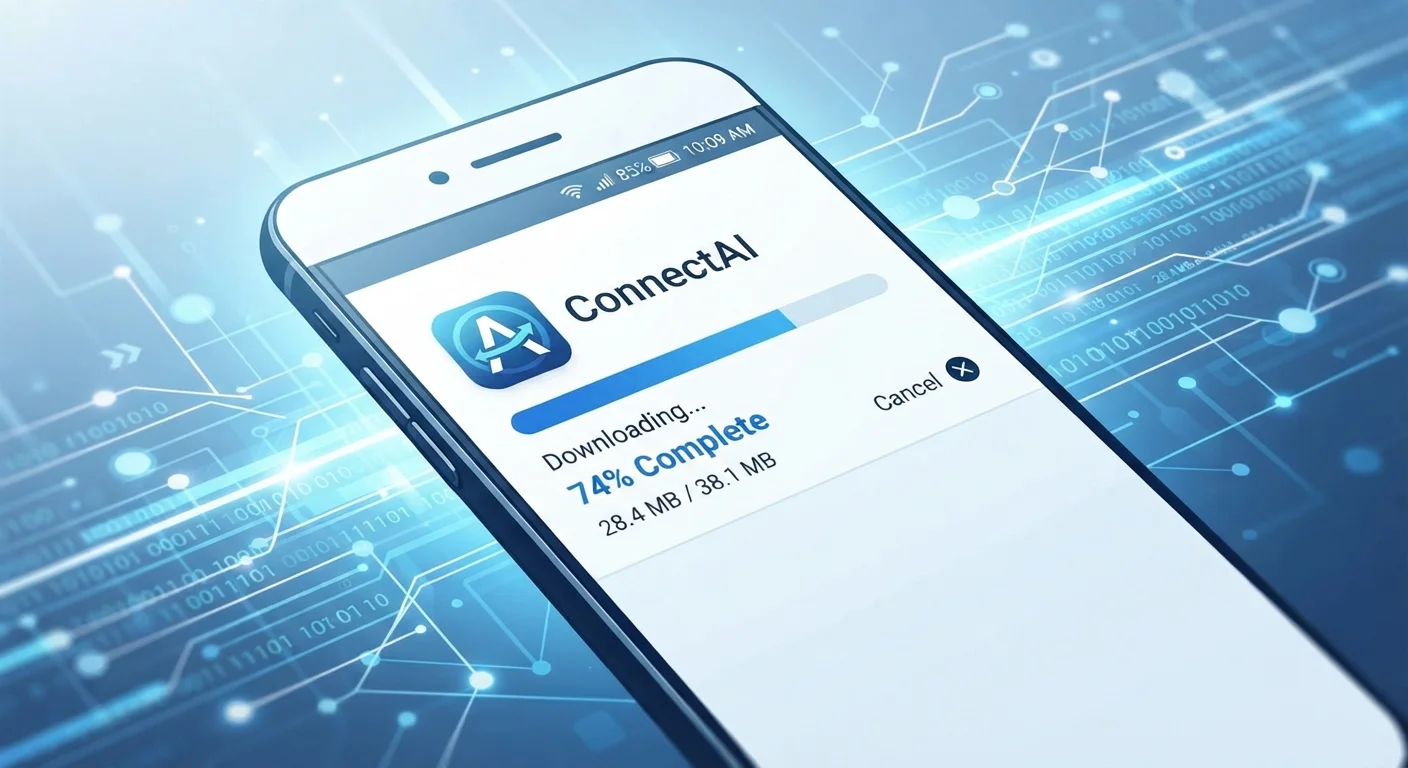
Photo credit: Telecom360.net | Connecting You To The Latest In Telecom
In this article
From tapping 'Install' to first launch — a plain-language walkthrough of what your device does behind the scenes.
Key Takeaways
- Tapping 'Install' triggers a download, verification, unpacking, and OS registration sequence.
- The app store verifies the app's digital signature before your device ever runs a single line of code.
- Each app runs inside an isolated sandbox, limiting what it can access on your device.
- Permissions you grant at install or first launch define the app's access to hardware and data.
- App updates repeat most of this process, replacing or patching existing installed files.
Step 1: The Store Validates Before You Even Download
When you tap Install on an app listing, the first thing that happens isn't a download - it's an authorization check. The app store confirms you have a valid account, that the app is compatible with your device's OS version and processor architecture, and that payment or entitlement is confirmed for paid apps.
Only then does the download begin. What transfers to your device isn't a loose collection of files - it's a single compressed package (an APK on Android, an IPA on iOS) containing everything the app needs: compiled code, images, fonts, audio, and a manifest that tells the OS what the app is and what it requires.
Crucially, the store also attaches a digital signature - a cryptographic fingerprint unique to the developer. Your device checks this signature during installation to confirm the package hasn't been modified in transit. If the signature is invalid or missing, the OS refuses to install. This is one of the core safeguards that makes official store distribution more trustworthy than other channels. For tips on evaluating apps before you reach this step, see spotting a fake app before you install it.
Step 2: Unpacking, Optimizing, and Registering with the OS
Once the download and signature check pass, the OS takes over. It unpacks the package into a protected directory - a location on internal storage that normal users and other apps cannot freely access. Static assets like images go into one location; the compiled executable code goes into another.
On modern devices, the OS also performs ahead-of-time (AOT) compilation or code optimization at this stage. Android, for instance, uses a runtime environment (historically Dalvik, now ART - Android Runtime) that compiles app bytecode into machine code optimized for your specific processor. This is part of why installation takes a few extra seconds even after the download completes - the device is doing real computational work to make future launches faster.
The OS then registers the app: it reads the manifest file to learn the app's name, icon, version number, and declared capabilities. It writes entries into system databases so the launcher knows to show the app's icon, and so background services know how to route notifications and system events to it.
Why Sandboxing Matters for Security
The sandbox model means that even if a poorly written app has a vulnerability, the damage it can do is structurally limited by the OS. One app cannot read another app's private data without an explicit OS-mediated sharing mechanism. This is a foundational design principle of both iOS and modern Android, not an optional feature.
To understand how the OS manages this process at a deeper level - including app sandboxing and hardware abstraction - see what a mobile operating system actually does.
Step 3: Sandboxing, Permissions, and First Launch
Every installed app runs inside a sandbox - an isolated execution environment enforced by the OS kernel. By default, an app can only read and write its own data. It cannot inspect another app's files, access the camera without explicit permission, or read your contacts unless you allow it. This architecture means a misbehaving app causes limited damage; it can't reach outside its own boundaries without OS approval.
Review Permissions Before You Tap Allow
When an app requests a permission on first launch, that moment is your best opportunity to evaluate whether the request makes sense for what the app does. A flashlight app asking for microphone access is a red flag; a video chat app asking for it is expected. You can always revisit and revoke permissions later in your device's Settings - granting them isn't permanent.
Permissions are the bridge between the sandbox and the rest of your device. At or after installation, the OS presents permission requests - location, microphone, camera, notifications - and your choices are stored as policies the OS enforces on every subsequent call the app makes. Reviewing these carefully before granting them is worthwhile; our permission and privacy checklist walks through what to look for.
On first launch, the app initializes its own internal database, writes default settings, and may contact its own servers to complete setup (account creation, content syncing, license validation). What you experience as a smooth welcome screen is, underneath it, a coordinated sequence of file writes, network calls, and OS interactions - all happening in under a second on a capable device.
For a broader look at the mechanics behind these interactions, key concepts every smartphone user should know about how apps work covers APIs, push notifications, and more in plain language.
Frequently Asked Questions

Author
Apps & Software Editorial Team
Apps & Software Editorial Team is the collective byline for our editorial team and contributor network. Articles published under this byline or an editorial pen name are researched, written, and reviewed according to our editorial standards for clarity, consistency, and independence before publication.
View all articles →