
Getting the Most Out of Your Phone's Notification System
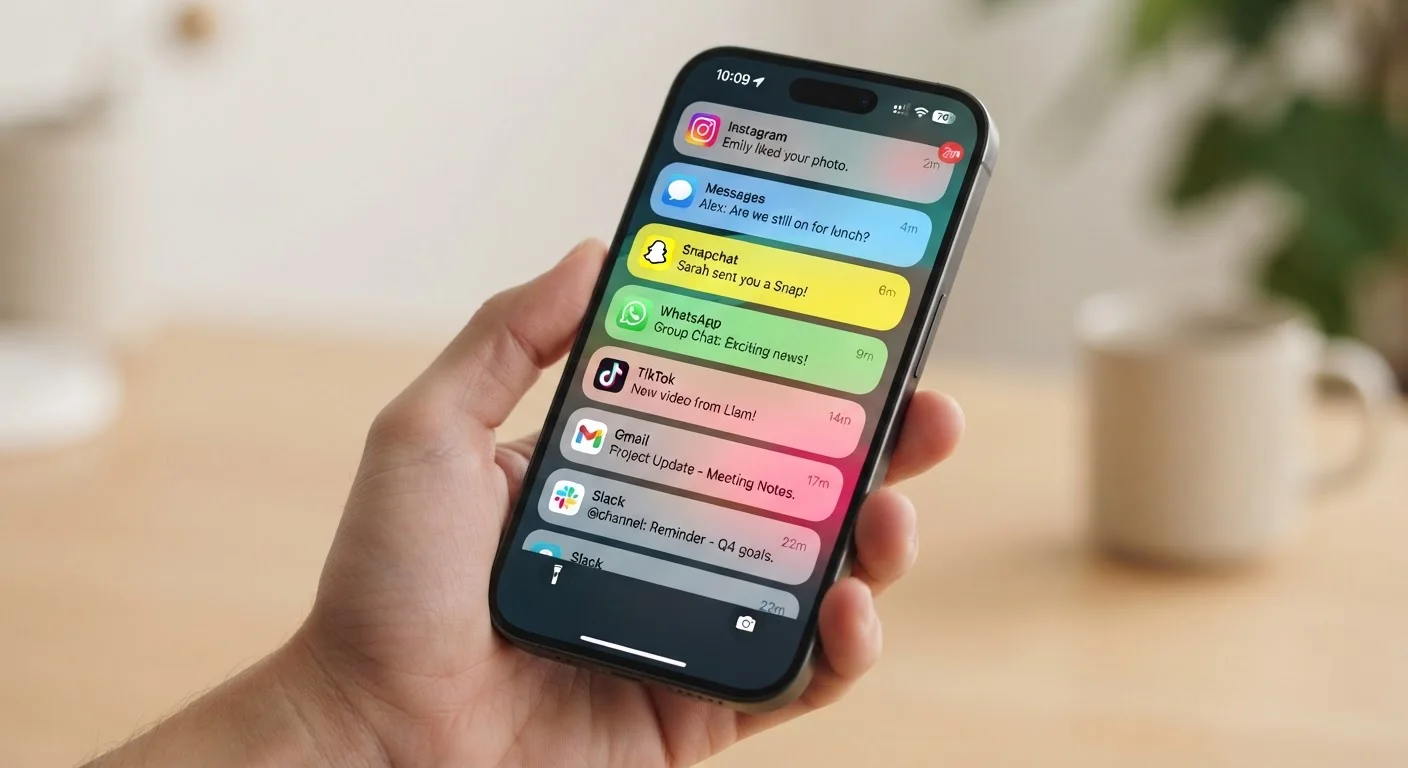
Photo credit: Telecom360.net | Connecting You To The Latest In Telecom
In this article
Notifications done badly fragment your attention. Learn how to configure channels, priorities, and Do Not Disturb for genuine focus.
Key Takeaways
- Android's notification channels let you silence specific alert types within a single app without disabling it entirely.
- iOS Focus modes allow contextual filtering so work and personal alerts don't compete for attention simultaneously.
- Do Not Disturb configured with starred contacts ensures critical calls still reach you during quiet hours.
- Most attention fragmentation comes from apps with poorly justified default notification permissions.
- Auditing notification permissions quarterly catches permission creep before it degrades your focus.
Why Default Notification Settings Fail You
Every app installed on your phone arrives with its own notification defaults, almost always set to maximum visibility. Push alerts, badge counts, lock-screen previews, sounds - all enabled from the first launch. The cumulative effect across a typical phone with 40 to 80 installed apps is a near-constant interruption cycle that research in cognitive psychology consistently links to reduced sustained attention and increased task-switching costs.
The problem isn't notifications themselves. It's that most users never revisit the permissions they grant at install time. Defaults are designed by app developers to maximize engagement, not to match your actual workflow. Reclaiming control requires understanding the two platforms' distinct - but complementary - approaches to notification architecture.
Android vs. iOS: Different Models, Same Goal
Android and iOS approach notification control through different architectural philosophies. Android offers deep per-channel granularity within individual apps, while iOS layers contextual Focus modes over app-level controls. Neither approach is universally superior - Android's system rewards users willing to configure per-app settings, while iOS Focus modes provide faster contextual switching. Understanding which model fits your workflow determines which platform's tools you should prioritize learning.
Android: Mastering Notification Channels
Android introduced notification channels in Android 8 (Oreo), and they remain the most granular per-app control available on any major mobile platform. Rather than a binary on/off switch for each app, channels let you configure individual alert types separately. A messaging app might offer channels for direct messages, group chats, and promotional updates - you can mute the latter while keeping the former fully active.
To access channels, navigate to Settings → Apps → → Notifications. Each listed channel supports independent sound, vibration, and importance-level settings. Setting a channel to Silent suppresses sound and vibration without hiding it from the notification shade, which is useful for alerts you want to review on your own schedule.
Audit notification permissions for every app quarterly, not just at install time.
Apps update their notification behavior over time, and new features often add new channels or request broader permissions through updates. Without periodic review, your notification load grows invisibly. Catching this early prevents the gradual erosion of focus that accumulates over months.
Set notification importance levels explicitly rather than relying on app defaults.
Android's importance scale - Urgent, High, Medium, Low - controls whether an alert makes sound, appears as a heads-up banner, or only shows in the shade. App defaults almost always skew toward High or Urgent. Reassigning less critical apps to Medium or Low eliminates the visual and auditory interruption without losing the information.
Configure at least one Focus mode or DND schedule that activates automatically.
Manual activation of quiet modes requires remembering to toggle them - a step that's easy to skip when you're already distracted. Automating activation removes the friction and ensures protected time occurs consistently rather than aspirationally.
Restrict lock screen notification previews for messaging and email apps.
Content previews on the lock screen surface sensitive information - conversation snippets, financial alerts, authentication codes - to anyone who can see the display. Disabling previews retains the notification indicator without exposing the underlying content.
Use notification channels to separate transactional alerts from promotional ones within a single app.
Many apps mix genuinely useful alerts - order confirmations, account security alerts - with marketing messages in what appears to be a single notification stream. Channels separate these, letting you retain value-adding alerts while silencing promotional noise without uninstalling or fully disabling the app.
For professionals managing work apps alongside personal ones, consider pairing channel configuration with cross-device sync practices - so the same alerts surface consistently across your devices without duplication.
iOS: Focus Modes and Time-Sensitive Alerts
Apple's Focus system - introduced in iOS 15 - operates at a higher level of abstraction than Android channels. Rather than configuring individual apps, Focus modes define contexts: Work, Personal, Sleep, Driving. Within each, you specify which apps and contacts can break through. Apps that Apple designates as capable of sending Time Sensitive notifications can bypass some filters, but you control which apps hold that designation under Settings → Focus → → Apps.
The practical power of Focus is schedule automation. A Work Focus can activate automatically on weekdays between set hours, allowing work-related calendar and email alerts while silencing social media. When that Focus ends, personal app notifications resume. This eliminates the manual toggling most users rely on - and forget.
Notification summaries, available under Settings → Notifications → Scheduled Summary, bundle lower-priority alerts into one or two daily digests, a pattern consistent with deep-work principles around batching reactive tasks.
Do Not Disturb, Lock Screen Visibility, and the Audit Habit
Do Not Disturb (DND) exists on both platforms and remains underutilized. On Android, DND can be configured with exceptions for starred contacts and repeated callers, meaning a genuine emergency call will still connect while routine notifications are silenced. On iOS, the same logic applies through Focus's Allowed People setting. Neither requires completely cutting off communication - just prioritizing it.
Lock screen notification visibility deserves separate attention. Previewing message content on the lock screen is convenient but exposes sensitive information to anyone nearby. Both platforms support showing notifications without content previews - set this under Settings → Notifications → Show Previews on iOS, or per-app on Android. This is particularly relevant for security-conscious device management.
23 min
Average refocus time after a single interruption
Research from the University of California, Irvine found it takes approximately 23 minutes on average to return to a task after an interruption.
40-80
Typical installed apps on a smartphone
Industry usage data consistently shows most users carry between 40 and 80 installed apps, each with independent notification defaults active at install.
Finally, build a quarterly notification audit into your routine. Open your notification settings, sort by apps generating the most alerts, and revoke permissions for any app where you consistently swipe dismissals without reading. Permission creep - the gradual accumulation of granted access - is the primary driver of attention fragmentation over time.
“Notifications are not the problem - notification architecture is. The devices are capable of extraordinary precision. The gap is that users are never taught to configure what they already have.”
— Gloria Mark, Professor of Informatics, University of California, Irvine, and author of research on digital distraction and attention

Author
Smartphones Editorial Team
Smartphones Editorial Team is the collective byline for our editorial team and contributor network. Articles published under this byline or an editorial pen name are researched, written, and reviewed according to our editorial standards for clarity, consistency, and independence before publication.
View all articles →